This user manual covers common use cases and provides tips for troubleshooting and diagnostics. You will also find a PDF copy of this User Manual in the .zip file of the RT Installer Trial Pack.
USER MANUAL
Version Differences
Depending on the version of the application you have or how you configure the trial version, different functions may or may not be available in the application. Any version that is success fully activated will be able to install automatic deployment configurations. The remaining functions are as follows:
1. Manual operations
2. Automatic deployment configuration edit/create
3. Forced USB filtering
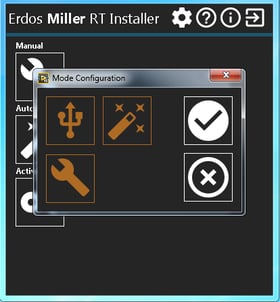
The trial version can be configured to enable/disable any of the above, by going to configuration and clicking the mode select button. Otherwise, the license the application is activated for will work as described below.
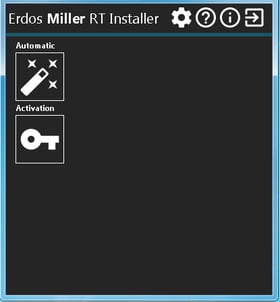
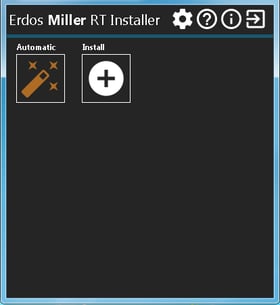
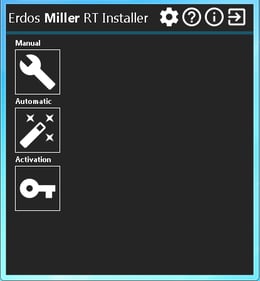
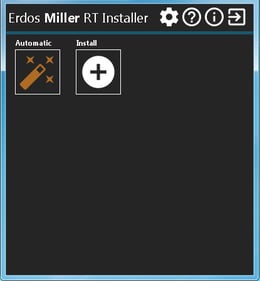
The “ Client ” version of the application only allows installation of automatic deployment configurations; its main navigation will only show the automatic button with the installation option and the software activation button.
 |
 |
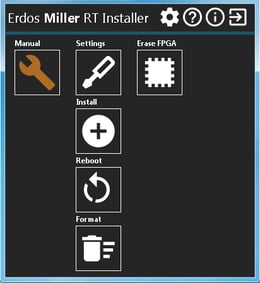
The "Client Plus" version of the application will allow installation of the automatic deployment configuration and manual operations of the application. It will allow you to install automatic deployment configuration as well as access all manual operations with any connected targets.
 |
 |
 |
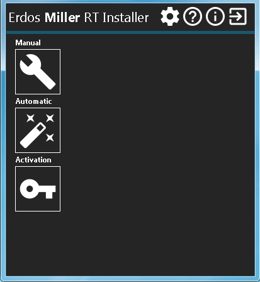
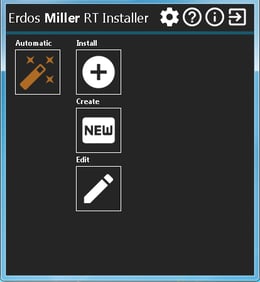
The ”Developer” version of the application will allow installation of the automatic deployment configuration, and manual operations as well as the creation and editing of automatic deployment configurations.
 |
 |
 |

Activation
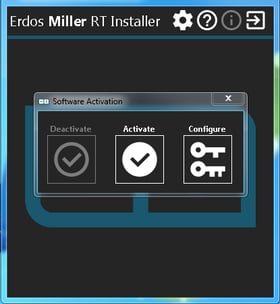
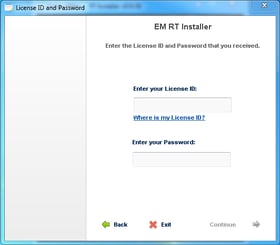
On run, the RT Installer will check to see if it’s currently activated and has a configuration . If not, the software activation window will pop up to allow you to configure the version and activate the application. If there is no configuration for the license type , you’l l also be presented with the option to configure the kind of license to activate. Software activation can be accessed by clicking on the activation button in the main interface.
 |
 |
If a version isn’t already configured, you can choose to select a trial version or one of the three full versions described in detail in the Version Differences section.

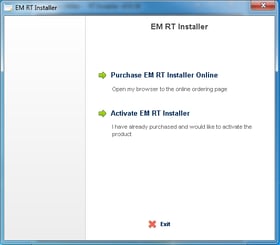
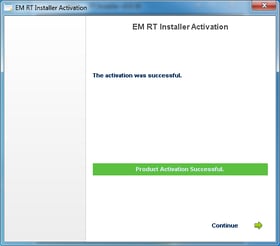
Once a version is selected, clicking on the activate button will allow you to enter your license information, and upon successful activation, you’ll be returned to the main navigation.
 |
 |
 |
The RT Installer can also be deactivated to either modify the version or remove an installation from a specific computer. Licenses are tied to computers and can be transferred if they are first deactivated.
Configuration
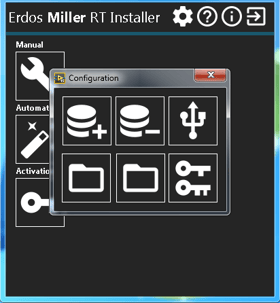
Configuration for the RT Installer can be accessed by clicking the "Configuration" button above the main navigation. Configuration will look slightly different depending on whether the version running is running in trial or full mode.
 |
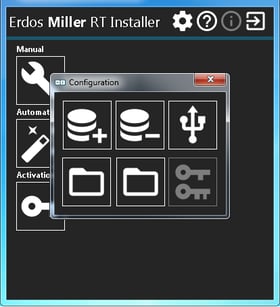 |
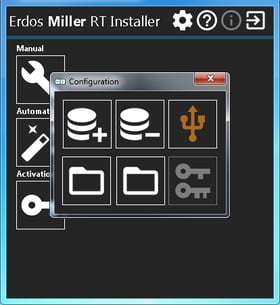
1. Add/Update items in the offline software database
2. Delete items from the offline software database
3. Enable/disable USB filtering
4. Update the automatic deployment directory
5. Update the FPGA bitfile directory
The offline software database can be used in situations where you have a developer version of the application and need to be able to modify an existing automatic deployment configuration or create a new one and the target(s) you want to deploy to are not available.
By adding a target , you allow it to be accessed in the automatic deployment configuration editor. You can add items to the database by clicking on the add target to database button in the configuration and then selecting one of the targets that appear in target selection. Once a target is selected , it will update its entry in the offline database.
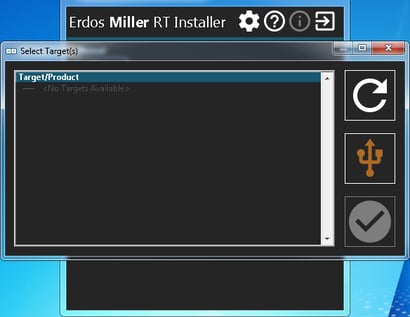
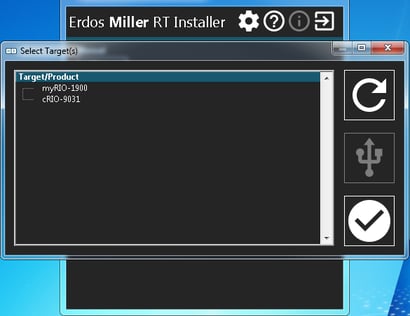
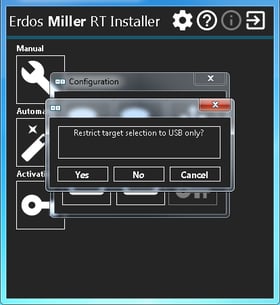
USB filtering is a way to “safeguard” yourself from making changes to targets you can’t see. As you may be on the same network as all targets, being sure which one you’re connected to is very helpful. When USB filtering is enabled, it will filter the hardware target list to only show those targets that are connected to your computer via USB. To enable filtering, click on the USB filtering button and click yes. For some client versions of the RT Installer , USB filtering is forced so that no changes can be made to targets that aren’t physically connected to the host machine. Configuration of USB filtering is persistent whether configured in the configuration or during target selection.
 |
 |
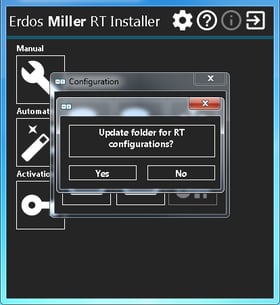
The default folder for storing automatic deployment configurations can be selected by clicking on the update automatic deployment folder button in the configuration, once clicked it will ask to update the folder, then allow selection of the folder. This is the folder where the RT installer will default to when you attempt to open or save an automatic deployment configuration.
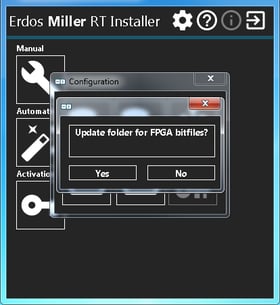
The default folder for storing FPGA bitfiles can be selected by clicking on the update FPGA bitfile folder button in the configuration . Once clicked it will ask to update the folder, then allow selection of the folder. This is the folder where the RT Installer will look to add folders to automatic deployment configurations and where it will copy imported FPGA bitfiles.
Manual Operations
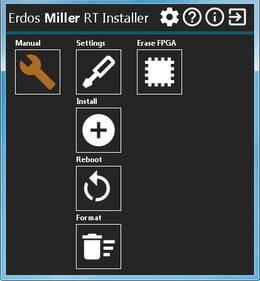
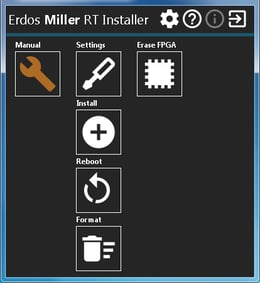
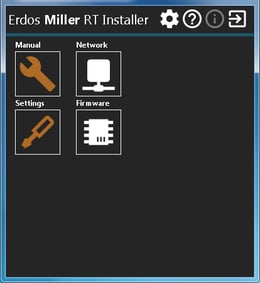
Most of the functions used during automatic deployment and some extras are available to do manually. Manual operations can be accessed from the main navigation in the client plus and developer versions of the software by clicking on the manual button.
 |
 |
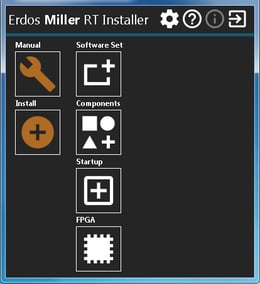 |
Within manual configuration, the following operations are available:
1. Settings
a. Network Configuration
b. Firmware
2. Install
a. Software Set
b. Components
c. Startup Application
d. FPGA Application
3. Reboot
4. Format
5. Erase FPGA
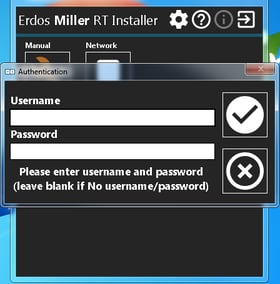
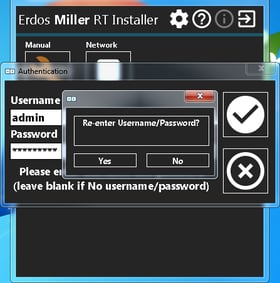
Selecting any of the manual operations will first provide you with a target selection and once the target has been selected, it will ask you to enter the username and password for the selected target(s). Not every operation requires authentication, but the RT Installer will attempt to authenticate with the provided username/password for one or more selected targets.
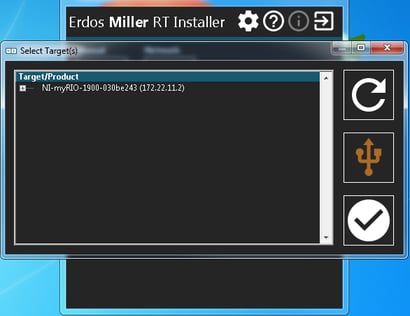
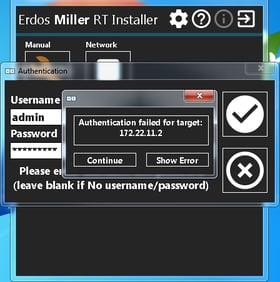
If a supplied username/password doesn’t successfully authenticate with the selected target(s) feedback will be provided to bypass or re-enter authentication information. If more than one target is selected, the RT Installer will ask if you want to attempt to authenticate to all targets.
 |
 |
 |
Once a target is selected and authentication information has been entered, you can perform the manual action.
When configuring network settings, you are presented with two lists, one showing the available items to configure and another showing items to be configured. The general workflow for configuring network adapters are to: (1) copy the adapters you want to configure, (2) click on the adapter in the configured adapters list, and (3) click the edit button to modify its settings.
|
1
|
2
|
|
3
|
4
|
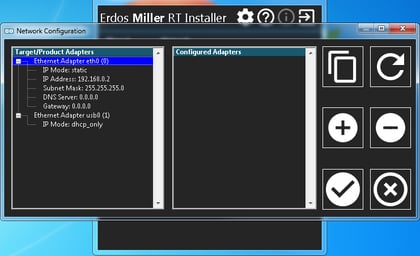
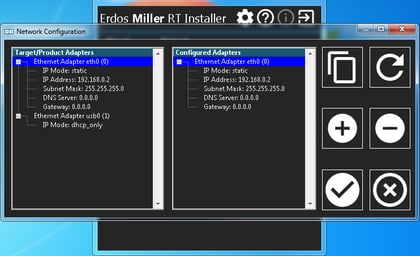
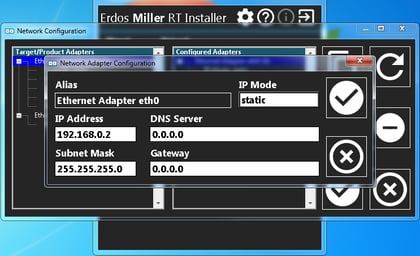
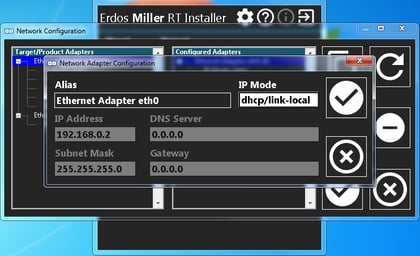
Once you have configured the settings, you can apply them by click on the affirmative button to apply the settings.
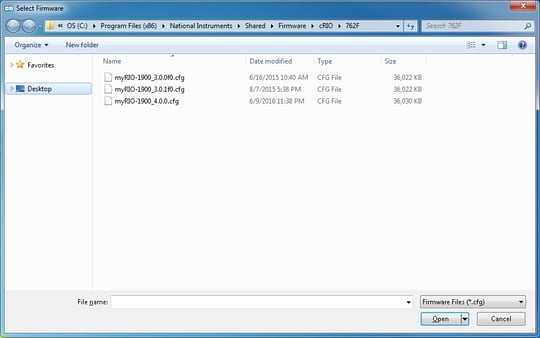
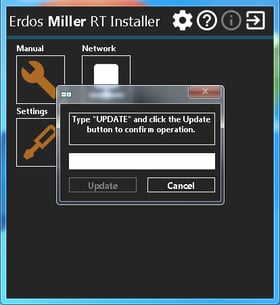
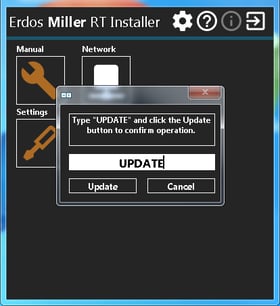
When configuring the firmware, the RT Installer will attempt to select the appropriate firmware directory according to the product of the selected target (https://knowledge.ni.com/KnowledgeArticleDetails?id=kA00Z000000P7OpSAK), you’ll have to select the appropriate firmware file and once selected, the RT Installer will confirm you want to update the firmware.
 |
 |
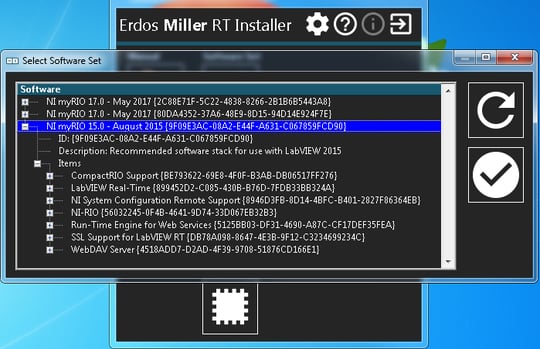
When installing a software set, you’ll go through the same workflow as the other manual operations, but then be presented with an interface that allows you to select a single software set. Upon selection and clicking of the affirmative button, the software set will be installed.
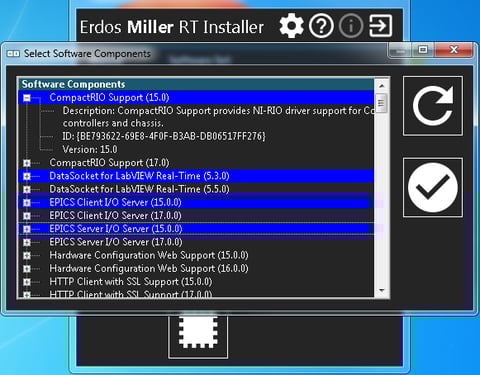
When installing software components, you’ll go through the same workflow as the other manual operations, but then be presented with an interface that allows you to select multiple components that will be installed upon clicking of the affirmative button.
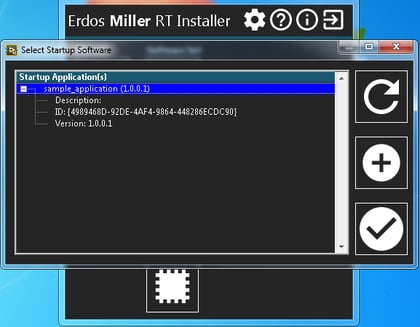
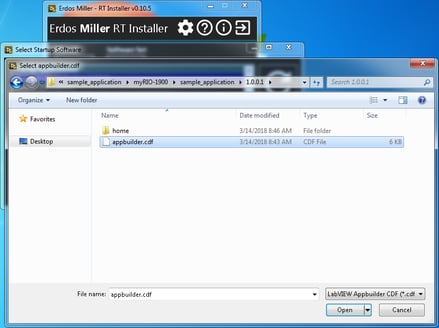
When installing a startup application, you’ll go through the same workflow as the other manual operations, but then be presented with an interface that allows you to select a single startup application that will be installed upon clicking of the affirmative button.
 |
 |
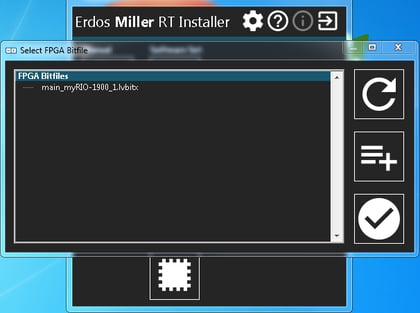
When installing an FPGA application, you’ll go through the same workflow as the other manual operations, but then you’ll be prsented with an interface that will allow you to select an FPGA bitfile. You’ll first be presented with a list of available bitfiles in the RT Installer bitfile directory.
To select a bitfile, you’ll first need to add it to the RT Installer bitfile directory by clicking the add bitfile button and then selecting the file.
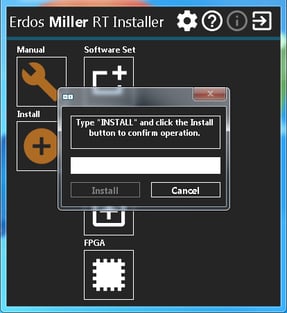
Once a file is selected, it is copied to the RT Installer bitfile directory and then the list is refreshed. Once you select a bitfile and click the affirmative button, you’ll be asked to confirm installation before the FPGA is downloaded onto the target.
 |
 |
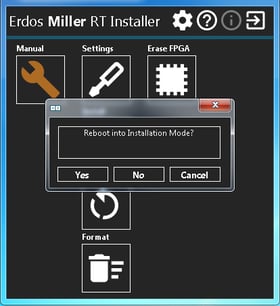
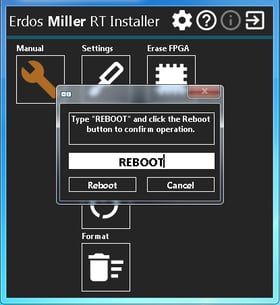
When using the reboot functionality, you’ll go through the same workflow as other manual operations, but then be presented with an option to boot into install mode . You will then will have to confirm the option to reboot the process.
 |
 |
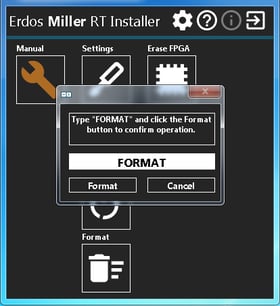
When using the format functionality, you’ll go through the same workflow as other manual operations. Once authentication information is entered, you’ll have to confirm you want to format the target and then the operation will begin.
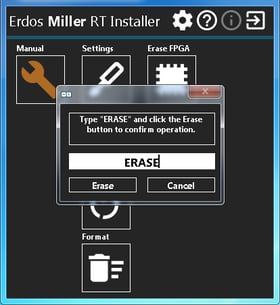
When using the erase FPGA functionality, you’ll go through the same workflow as other manual operations. Once authentication information is entered, you’ll have to confirm you want to erase the fpga of the selected target and then the operation will begin.
Automatic Operations
Automatic deployment allows you the ability to create a configuration that can match one or more targets of the same or different types, install software and configure hardware components. If running the developer version, you can create your own . While running "Client" or "Client Plus" , you can only install automatic configurations.
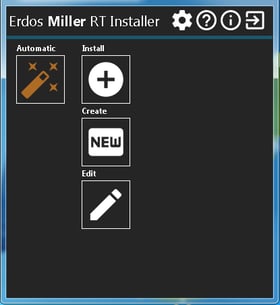
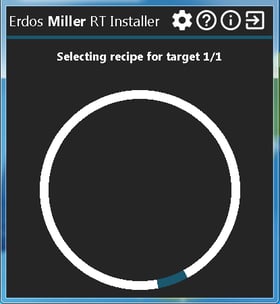
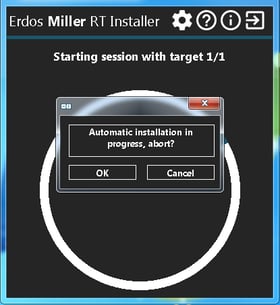
Automatic configurations can be installed, by navigating to automatic options and clicking the install button. After selecting the desired automatic configuration, you’ll be prompted t o select one or more targets as well as enter authentication information. The target list is automatically filtered by the targets which are present in the automatic configuration. While the automatic deployment is in progress, the interface will provide periodic updates as to its status and which target it’s currently configuring.
 |
 |
 |
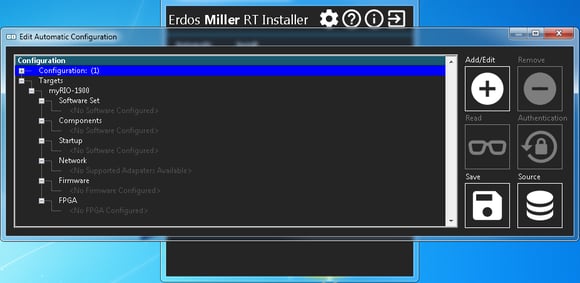
If using a version of the application that has developer mode enabled, you can configure your own automatic deployment configuration by navigating to the automatic op tions and clicking the create new button. After providing authentication information, you’ll have a blank configuration to which you can add targets to and individually configure different items for each client.
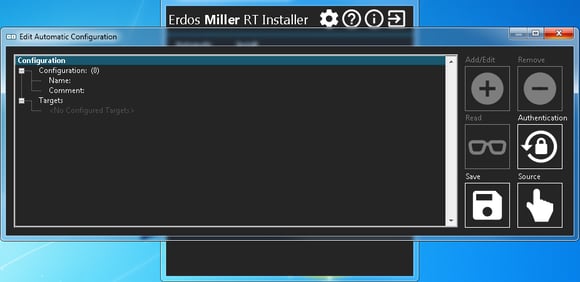
You can add a target by clicking targets a nd then clicking the add/edit button. After selecting a target, it will populate the existing configuration with an empty target configuration for that specific product.
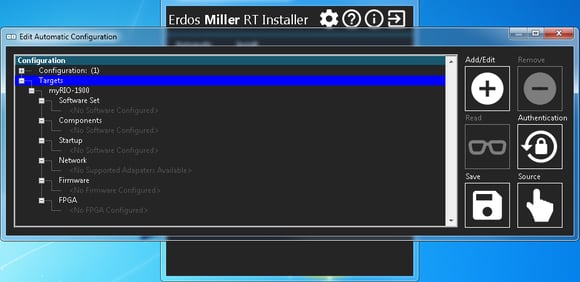
From here, you can select software set, components, startup, network, firmware , or FPGA and use the same interfaces in manual mode to select software to be installed or information to configure target hardware. Once configured, you can click the save button, provide a file name , and commit those changes to disk.
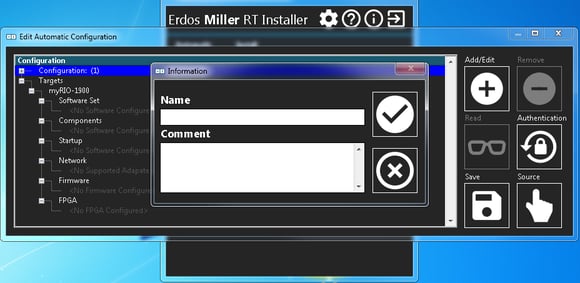
You can also add informati on to the configuration file in the form of a name and comment by clicking the configuration option at the top and clicking the add/edit button.
Alternatively, you may find that you need to create or edit a configuration and don’t have access to the target to configure. In the bottom right hand corner, there’s a source button which by default is configured in “target” mode. When clicked, it switches to ”database” mode where existing configuration (e.g. network) and available software is pulled from a loc al database that’s updated quietly as you interact with different targets.
Still haven't tried the RT Installer?