 +1 888 337 0869 [Sales]
  + [24/7 Field Support]
 info@erdosmiller.com

This user manual covers how to install, update, activate, and uninstall/rollback the RT Installer for NI Real-Time Hardware. You will also find a PDF copy of this Installation Manual in the .zip file of the RT Installer Trial Pack.
For the User Manual, click here.
Installation Manual
Installation
If installing for the first time or on a machine that’s missing the LabVIEW 2015 Runtime Engine and/or the NI System Configuration Runtime, use the latest installer.
If updating to the most recent version, use the latest updater. Future versions may introduce new dependencies requiring use of the installer to update, so consult the release notes for more information on updating.
Instructions
1.- Download the rt_installer-installer.exe, rt_installer_latest_installer.exe, or rt_installer_latest_updater.exe from the Erdos Miller website (included in your erdos_miller_rt_installer ZIP file).
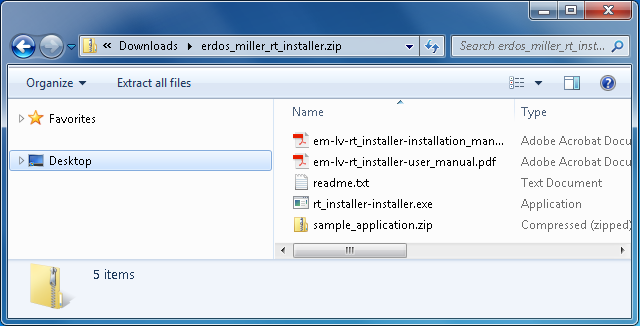
2.- Double-click the .exe file. You may receive a security prompt .
3.- Windows 8+ may require you to click ”more info” and then click ” run anyway”
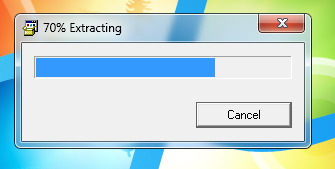
4.- Once extraction is complete, the setup.exe should run, and you may be prompted to provide administrative privileges to the installer.
5.- Click "Next" through the installer until installation begins.
|
1
|
2
|
|
3
|
4
|
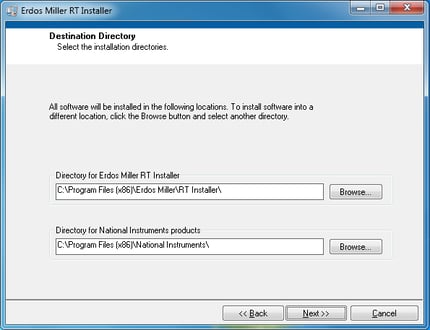
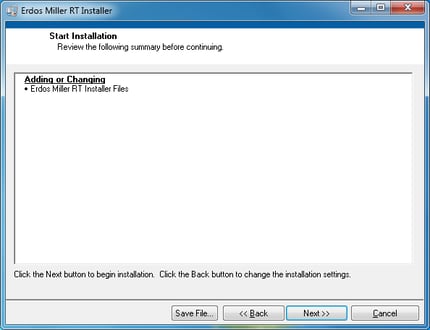
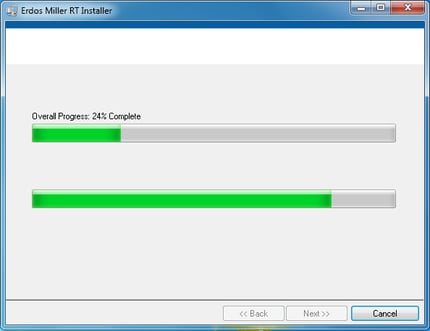
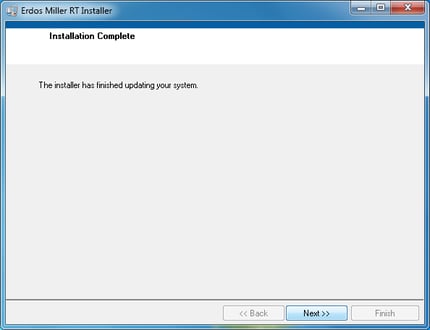
6.- You may be prompted to restart. Due to the System Configuration API, sometimes not restarting will cause the program to act erratically. For best results, when doing clean or first-time installs , you should reboot.

Updates
As described above, there may be periodic releases with new features and bug fixes; depending on the kind of release, it may be necessary to install new dependencies or upgrade the configuration. Updates should be identical to first-time/clean installs. Major updates should always be accompanied by an updated installation manual or instructions in the release notes.
When updating, you can verify what version you are running by looking at the version in the title bar or by using the following steps:
1.- Open the RT Installer application.
2.- Click on the about button in the top right-hand corner next to the exit button.
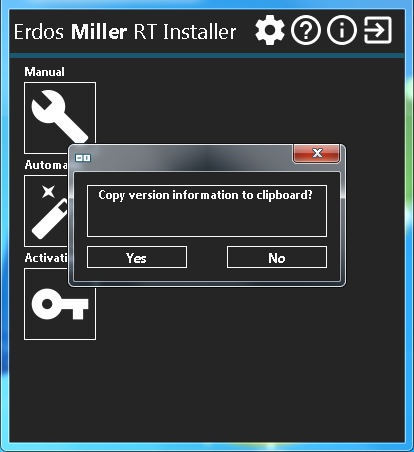
3.- Click "Yes" for the following dialog to copy the version information to the clipboard.
4.- Paste clipboard information into a text editor.
5.- Perform the update.
6.- Perform steps 1 - 4 and compare.
Using the above steps, you should be able to verify that the last-built date after the initial installation and the commit are different from the previous version. Software versions are described arbitrarily by three numbers: major.minor.build.
• A change in the major number indicates a non-backwards compatible change , which may make it incompatible with previous versions of the software.
• A change in the minor number indicates a compatible change that may require some additional steps after updating.
• Build number can sometimes indicate a benign change , such as a bug fix or a re-build of existing code.
Activation
On a clean install, there will be no currently configured license type, and there will be zero access to application functionality. Note that a valid license will be required to use the post installer or the RT Installer. Perform the following steps after getting an appropriate license from Erdos Miller to activate your application:
1.- Run the RT Installer or the Post Installer.
a. In the RT Installer, If not already in software activation, navigate to software activation and click the "Configure" button.
b. In the Post installer, software activation should automatically pop up if required.
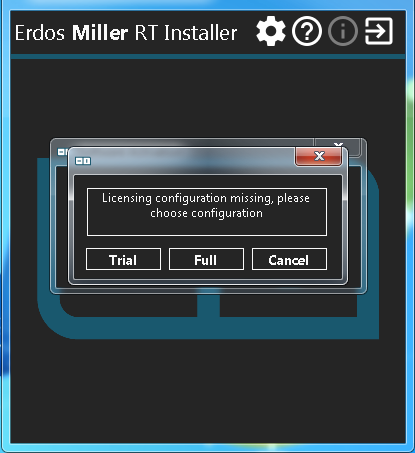
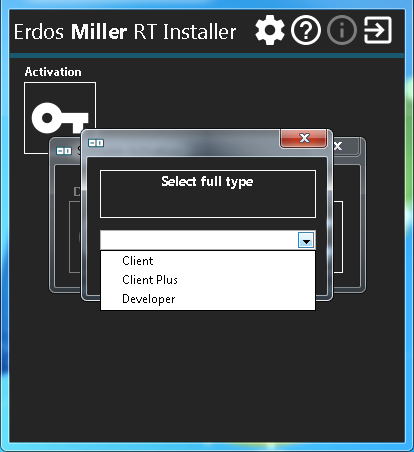
2.- Select the appropriate license type and confirm.
3. Click the "Activate" button.
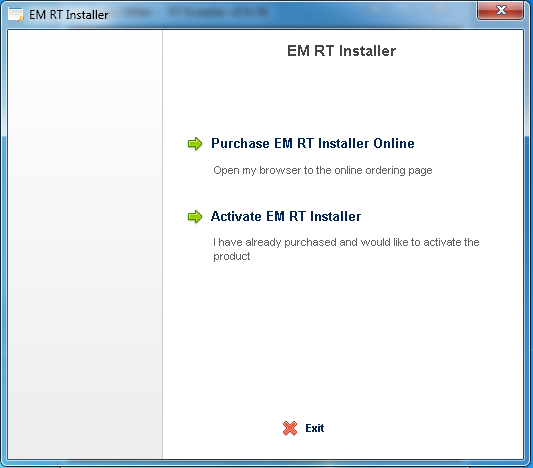 |
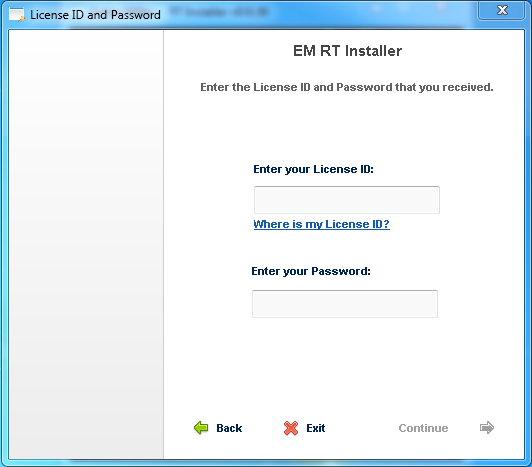 |
5. If required, register and enter your contact information.
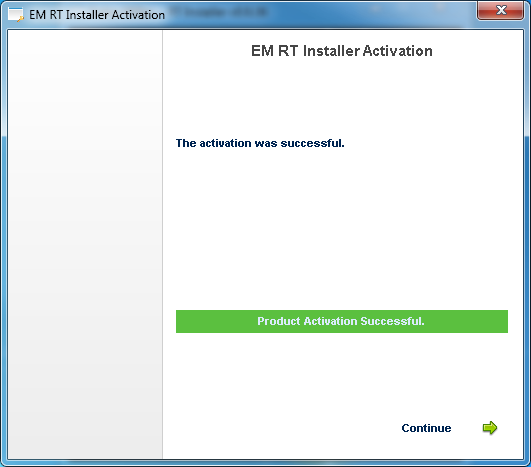
6. Upon successful activation you should be dropped back into the main interface and be able to navigate to automatic/manual modes as described by your license type (see the user manual).
Post-Installation
Post-installation is necessary for first-time/clean installs where dependencies are missing. The RT Installer post installer currently only provides an easier way to install NI RIO device drivers and software for versions 14.0 - 17.0 . Future updates may have additional updates or utilities for upgrading configuration files etc. It will need to be run manually from the start menu (search for RT installer Post-installer).
Instructions
The following instructions can be used to install one or more dependencies for the RT Installer. The post installer will download, extract , and install each of the selected dependencies in the order they are selected. Please ensure that there is enough disk space. Alternatively, if you already have the folders, you can add that folder to search for the installation files.
1.- Run the RT Installer Post-Installer.
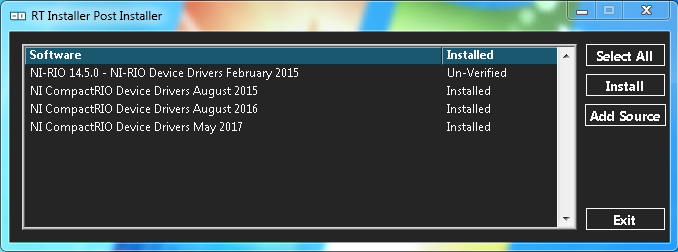
2.- If you’d like to add an additional folder to search for installation files, click the add source button and then click yes to select an additional folder .
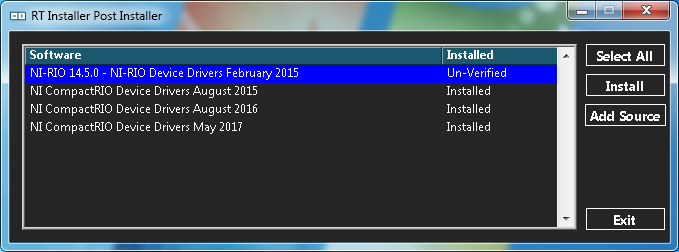
3.- Select the dependencies you want to install.
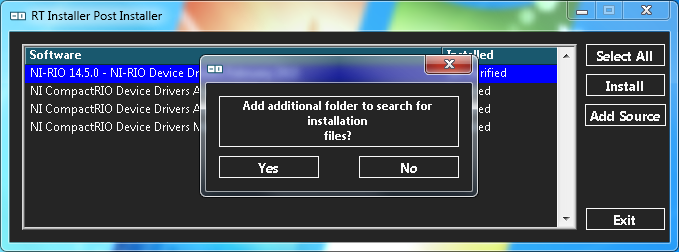
4.- Click the "Install" button. If the required files are not available, the post installer will automatically download them to the desktop, you’ll need to make sure you have adequate spa ce and delete them after installation is complete
5.- Wait for positive or negative feedback for installation, installation of these NI components can take a long time.
6.- Verify that the software list has updated to show the dependency installed.
Verification
If you want to externally verify that the dependencies have been installed, you can use the following steps:
1.- Go to Control Panel > Programs and Features.
2.- Search for National Instruments, and then click "Change".
3.- Scroll through the list and look for the installed dependencies.
In the event you need to rollback to a previous version or need to uninstall the software, you can do so with the following steps:
1.- Navigate to the Control Panel.
2.- Go to Programs and Features.
3.- Find RT Installer by Erdos Miller in the list.
4.- Click on the "Uninstall" button.
5.- After uninstallation is complete, you’ll need to manually delete the RT Installer folder within the Erdos Miller folder in program files to remove all the data .
In the event you need to roll back a version of the RT Installer, you’ll need to uninstall the more recent version of the application prior to installation an older version. Licensing is stored separate from the application, so version rollbacks should only involve re-configuring the license type if the license is compatible with the installed version.
Troubleshooting
Below are some situations we identified when using the application ourselves and should be a nice starting point before contacting us for support:
• The RT Installer failed to run for the first time
o If there was a failure, the RT Installer should provide negative feedback and an error describing the problem . If the error doesn’t describe the problem appropriately, please include the error in any correspondence for support.
• How can I see the error log?
o The error log is located inside data/error from the directory the executable is located . T he post installer does not log any errors.
o Any errors that are experienced by the application that aren’t expected are generally provided in the f orm of negative feedback and logged in the error log.
• When I attempt to install software to a target, there is no available software.
o Software requires at least one version of NI - RIO to be installed . G enerally, if there is no software available in the list , it’s because there’s no software available on the machine for the selected target.
• No targets appear on the target list.
o This can happen for a variety of reasons since NI uses broadcasts to communicate with targets . Generally, if the target is on a broad cast media , it should be available.
o You can use MAX to verify if a target is reachable for troubleshooting purposes.
o As a last resort, connect the target directly to your computer using an ethernet or USB cable.
• Of the available startup software, I’m seeing available versions that haven’t been built for the target.
o Currently the software does not differentiate between startup applications on different hardware targets. If you are not sure which version to deploy, consult your project for the built version n umbers.
• Post Installer failed to download or install a file .
o We use static MD5 to verify and static addresses. It’s totally possible that NI will change those addresses or modify the files. We’ll try to keep them up to date , as there’s no guarantee that they are permalinks.
• Activation fails
o Activation can fail for a variety of reasons. When asking for support please be sure to include your license ID so we can troubleshoot on our end.
o Licenses are locked to the PCs they’re activated on. Attempts to activate a license on more than one PC will fail.
o If you deactivate a license and then attempt to activate it, activation will fail, so please contact us for support.
• Its taking a very long time to populate the target list or show available software
o Different network conditions can cause problems to occur, I’ve found that ensuring that you’re on a simple network with the device and not other networks helps sometimes since NI uses broadcasts for communication in some cases.